
Table of Contents
Table of Contents
If you’ve spent any real time using a Web Search API with Open WebUI, you’ve probably noticed the biggest limitation of any large language model: it only knows what it was trained on. Ask it about last night’s game, a software release from this morning, or a company’s latest announcement, and you’ll often get a confident but outdated response. The model isn’t malfunctioning; it simply has no way to see what’s happening right now without access to live web search.
That’s the actual problem a web search API for Open WebUI solves. It’s not a novelty toggle. It’s the difference between an assistant that reasons well over frozen knowledge and one that can reason over what’s true right now. SERPHouse is one of the providers Open WebUI supports natively for this, and connecting it is a fifteen-minute job if you know where the friction points are and a frustrating hour if you don’t. This guide walks through both the setup and the parts that actually trip people up.
What Is Open WebUI?
Open WebUI is a self-hosted, extensible interface for running and managing large language models local models through Ollama, hosted models via OpenAI-compatible APIs, or a mix of both, all behind one consistent chat UI. Developers reach for it because it gives them a private, controllable front end without locking them into a single model vendor.
Full setup and configuration details are available in the Open WebUI documentation.
The typical use cases cluster around three things: running local models with a polished interface instead of a bare API, standing up an internal AI assistant that a team can share, and building lightweight AI-powered tools (RAG pipelines, custom agents, internal knowledge search) on top of an interface that already handles auth, chat history, and model routing. Developers choose it specifically because it’s open-source, self-hostable, and designed to be extended rather than treated as a closed product.
Why Connect SERPHouse to Open WebUI?
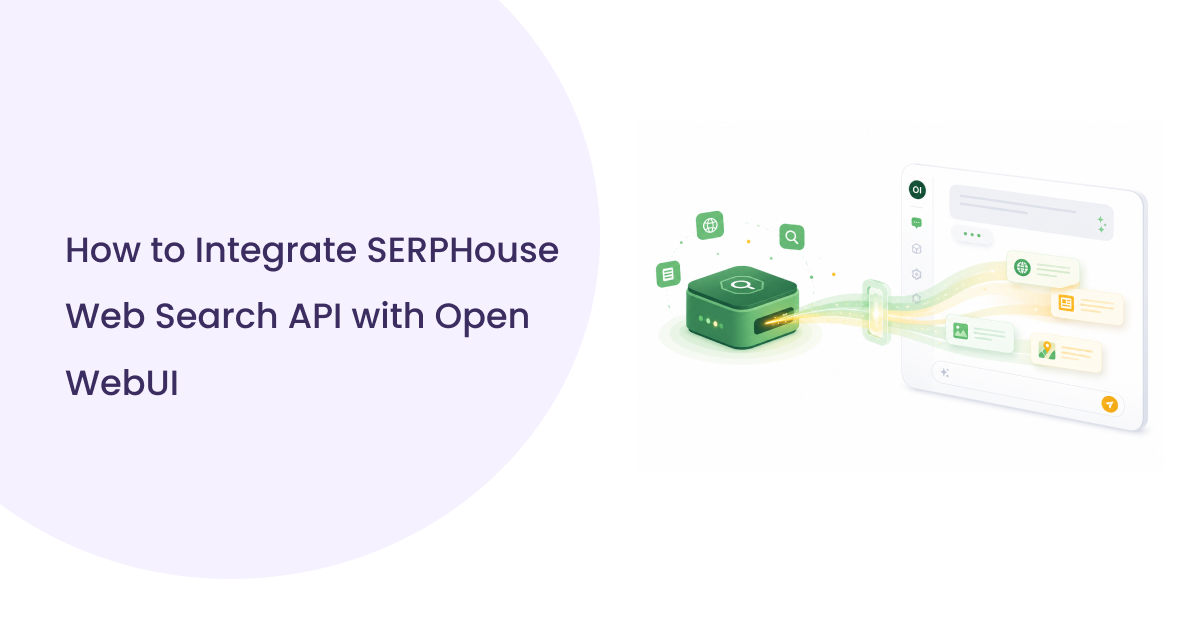
A Web Search API with Open WebUI gives your AI assistant access to live information instead of relying only on its built-in knowledge. By connecting to SERPHouse, Open WebUI can retrieve fresh search results in real time, allowing your models to answer questions about current events, recent documentation updates, market trends, and other time-sensitive topics with greater confidence.
SERPHouse is a real-time Web Search API; it queries live search results and hands them back as structured data your model can read. In practice, that gets you a few concrete things:
- Live search results: The model isn’t limited to its training data; it can pull in what’s currently indexed.
- Structured responses: Because results come back as structured data results rather than raw HTML, Open WebUI can parse and feed them to the model cleanly, without a scraping layer in between.
- Better factual accuracy on time-sensitive questions: Prices, releases, news, current office-holders, recent documentation changes, anything that decays quickly gets grounded in a live source instead of a guess.
- Developer flexibility: You control the search domain (which regional Google index gets queried) and can swap providers later without restructuring your Open WebUI deployment, since the web search layer is abstracted the same way across providers.
None of this replaces good prompting or a well-chosen model. It’s a grounding layer; it gives the model something current to reason over, which matters most in MOFU scenarios where the reader already has Open WebUI running and just needs the search layer working.
Snippet-ready answer: SERPHouse gives Open WebUI real-time, structured search results, which lets the connected model answer time-sensitive questions accurately instead of relying solely on its static training data.
Prerequisites Before You Start
Before setting up a Web Search API with Open WebUI, it’s worth checking that your environment is ready. A few basic requirements can save you from common setup issues later, especially when connecting an external search provider like SERPHouse. Taking a minute to verify everything now makes the integration process much smoother.
- A running Open WebUI instance: local install or Docker, doesn’t matter which, as long as you have admin access to it.
- Admin access to that instance: Web Search configuration lives in the Admin Panel; a non-admin account won’t see the option.
- A SERPHouse account with an active API key: Free-tier or paid, either works for setup; you just need a valid key.
- Outbound internet connectivity from the machine or container running Open WebUI: If Open WebUI is behind a corporate proxy or a locked-down Docker network, search requests need an egress path.
- A recent Open WebUI version: Web search provider options change over releases; if you’re on an old build and don’t see “serphouse” in the engine dropdown, update first.
Developer Note: If you’re running Open WebUI in Docker with restricted networking, verify egress before you configure SERPHouse. A correctly entered API key will still fail silently if the container simply can’t reach the outside world and that failure mode looks identical to a bad key from the UI’s perspective.
Step-by-Step Integration Guide
Step 1: Get Your SERPHouse API Key
Objective: Obtain a valid, active API key from SERPHouse.
How to do it: Log in or create an account at SERPHouse, then open the API section of your dashboard. Generate or copy your key from there.
Expected outcome: You have a key string that you can paste into Open WebUI in the next step.
Common mistakes: Copying the key with a trailing space or a stray line break, this is invisible in most paste operations but will cause authentication to fail. Also watch for copying a masked version of the key from a dashboard that only shows partial characters for display purposes; make sure you’re grabbing the full, unmasked value.
Step 2: Open Admin Settings in Open WebUI
Objective: Reach the Web Search configuration panel.
How to do it: Log into Open WebUI with an admin account, then navigate to Admin Panel → Settings → Web Search.
Expected outcome: You should see a Web Search settings screen with a toggle and an engine selection dropdown.
Common mistakes: Logging in with a non-admin account and not seeing the option at all. This isn’t a bug; it’s a permissions boundary. Switch to an admin account.
Step 3: Enable Web Search
Objective: Turn on the web search feature globally for the instance.
How to do it: Toggle Web Search to On.
Expected outcome: Additional configuration fields (engine selector, API key field) become visible.
Common mistakes: Assuming the feature is on by default. It isn’t Open WebUI ships with web search disabled until an admin explicitly enables it.
Step 4: Select SERPHouse as the Engine
Objective: Set SERPHouse as the active web search provider.
How to do it: From the Web Search Engine dropdown, choose SERPHouse.
Expected outcome: The form updates to show SERPHouse-specific fields, API key and domain.
Common mistakes: Selecting a similarly named provider by accident from a long dropdown list (Serper, SerpApi, and SERPHouse all sit near each other alphabetically and are easy to conflate). If you’re still deciding between options, compare web search API providers before continuing.
Step 5: Enter Your API Key
Objective: Authenticate Open WebUI’s search requests against your SERPHouse account.
How to do it: Paste your API key into the SERPHouse API Key field.
Expected outcome: The field accepts the key with no format error.
Common mistakes: Pasting an old or revoked key from a password manager entry that wasn’t updated. If you rotated your key recently, make sure the version in Open WebUI matches the current one in your SERPHouse dashboard.
Step 6: Set the Search Domain (Optional but Recommended)
Objective: Control which regional Google index SERPHouse queries.
How to do it: Set the SERPHouse Domain field, for example, google.com for US results or google.co.uk for UK results. For the full list of supported domains and regions, see worldwide location targeting options.
Expected outcome: Search results reflect the region you’re targeting.
Common mistakes: Leaving this on the default when your use case is regional, for example, researching UK-specific news or pricing while querying the US index, which quietly skews results without producing an obvious error.
Step 7: Save Your Configuration
Objective: Persist the settings.
How to do it: Click Save.
Expected outcome: Settings are stored and take effect immediately for new chat sessions, with no restart required.
Common mistakes: Navigating away before saving, especially in a browser session with autofill interfering with the form.
Configuration Checklist
- Web Search toggle is On
- Engine set to serphouse
- Valid, current API key entered
- Domain set appropriately for your target region
- Settings saved and no error banner shown
Testing the Integration
Don’t assume it works; verify it. Here’s how to confirm SERPHouse is actually returning live results rather than the model quietly falling back on its own knowledge.
- Start a new chat: Existing chat sessions started before you enabled search may not pick up the new config until a new session begins.
- Enable search for the message: Click the plus (+) button in the prompt field to turn on web search for that query.
- Run a time-sensitive test query: something the model could not plausibly know from training data alone. Good test prompts:
- What’s the current price of Bitcoin in USD?
- What are the latest headlines about AI regulation this week?
- What’s the most recent version of Open WebUI?
- Who won last night’s [sport] game?
- Check the response for grounding signals: A working integration typically cites or references sources, includes current dates or figures, and avoids hedging language like “as of my last update.”
Expected Output Box: A correctly configured response should include specific, current details (dates, numbers, named sources) rather than a generic or hedged answer. If the model answers as though search never happened, treat that as a signal to troubleshoot, not a signal that the model is just “being conversational.”
Common Errors and Troubleshooting
Invalid API key
Symptom: search requests fail immediately, often with an authentication error surfaced in the chat or in Open WebUI’s logs.
Fix: re-copy the key directly from the SERPHouse dashboard, check for leading/trailing whitespace, and confirm the key hasn’t been rotated or revoked.
Empty search responses
Symptom: the query runs without an error, but the model’s answer shows no evidence it used any external information.
Fix: confirm the plus (+) toggle was actually enabled for that specific message; it’s a per-message toggle, not a persistent session setting. Also, check that your query is phrased as something genuinely searchable rather than a request the model can answer from general reasoning (search won’t trigger meaningfully useful results for “explain recursion”).
Authentication failures under load
Symptom: search worked initially, then started failing intermittently.
Fix: check your SERPHouse account for rate-limit or quota exhaustion. This is common on free or lower tiers under moderate testing volume. For a full explanation of how API rate limits work and how to plan around them, see the developer guide.
Wrong-region results
Symptom: results technically load, but they’re clearly not relevant to your intended locale.
Fix: adjust the SERPHouse Domain field to the correct regional Google domain.
Network/timeout issues
Symptom: search hangs or times out, especially in containerized deployments.
Fix: Verify outbound connectivity from the host or container running Open WebUI. Corporate proxies, restrictive Docker network modes, and firewall egress rules are the usual culprits; this is the same class of issue flagged in the prerequisites checklist above, and it’s worth rechecking here if the setup otherwise looks correct.
Settings appear saved, but nothing changes
Symptom: no errors, but behavior is unchanged.
Fix: start a genuinely new chat session rather than continuing an existing one; some configuration changes only apply going forward.
Best Practices
Search query design: Web search is triggered per message via the plus (+) toggle, not automatically for every prompt. Reserve it for questions where currency actually matters (pricing, news, recent releases, live status) rather than enabling it reflexively for every message, which adds latency and API usage without benefit.
API key management: Treat your SERPHouse key like any other production credential; store it via environment variables in server deployments rather than pasting it only into the Admin UI on a shared instance, rotate it periodically, and never commit it to a repository or shared config file.
Rate-limit awareness: Know your SERPHouse plan’s request limits before deploying to a team. Review SERPHouse pricing and query limits to understand how quota is counted across team usage before enabling search globally.
Secure deployment: If Open WebUI is exposed beyond your local machine, make sure admin access is properly restricted; anyone with admin rights can view and change the search API key.
Monitoring: Keep an eye on your SERPHouse dashboard for usage trends, especially after rolling the integration out to a wider group of users, so quota issues don’t surface as a mystery outage days later.
Performance considerations: Live search adds a network round-trip to every search-enabled query. For latency-sensitive workflows, reserve search for messages that genuinely need it rather than leaving it on by default for a whole session.
Real-World Use Cases
Research assistant
Problem: A developer needs quick, sourced answers while working, without breaking flow to open a browser.
Workflow: Enable search per-message inside an ongoing Open WebUI chat to pull in current documentation, articles, or announcements without leaving the interface.
Business value: Less context-switching, faster research loops.
Technical documentation lookup
Problem: Library and API documentation changes frequently, and a model’s training data can lag behind the current version.
Workflow: Use search-enabled queries to check current parameter names, deprecated methods, or recent changelog entries before writing code against a library.
Business value: Reduces the risk of shipping code against an outdated API surface.
SEO research
Problem: Understanding current SERP composition for a keyword requires live search data, not historical assumptions.
Workflow: Query live search results through the assistant to review current ranking pages, snippet formats, and competing content angles.
Business value: Faster, more current competitive content analysis without switching tools.
Market intelligence
Problem: Teams need a fast read on what’s currently being said about a market, product category, or competitor.
Workflow: Run search-enabled queries against current news and public commentary directly inside the assistant.
Business value: Faster situational awareness without manual searching across multiple sources.
News discovery
Problem: Staying current on a fast-moving topic without manually monitoring multiple outlets.
Workflow: Ask search-enabled, narrowly scoped questions about a specific topic to surface recent coverage.
Business value: Time saved versus manual news monitoring.
Competitor analysis
Problem: Tracking a competitor’s recent public moves releases, pricing changes, messaging shifts is a recurring, tedious task.
Workflow: Use targeted, search-enabled prompts to check for recent public announcements or changes tied to a specific competitor.
Business value: Lower-effort, more frequent competitive check-ins.
Conclusion
A Web Search API with Open WebUI helps turn your AI assistant from a static knowledge source into one that can access live information whenever it’s needed. By connecting to SERPHouse, your models can retrieve current search results instead of relying solely on training data, improving accuracy for news, technical documentation, SEO research, market intelligence, and other time-sensitive tasks. The setup takes only a few minutes, requires minimal configuration, and works smoothly with Open WebUI’s built-in web search framework. If you’re looking for a reliable way to bring real-time search into your local AI workflows, SERPHouse provides a fast, structured, and developer-friendly solution that can grow alongside your projects.