
Table of Contents
Table of Contents
Tracking keyword rankings by hand doesn’t scale past a handful of terms. The SERPHouse Keyword Rank Tracker add-on pulls ranking data directly into Google Sheets, so you get automated tracking without leaving the spreadsheet you’re already using for reporting.
This guide covers installation, authentication, dashboard setup, running your first fetch, and reading the results.
Install the Add-on
The add-on is distributed through the Google Workspace Marketplace:
Keyword Rank Tracker by SERPHouse
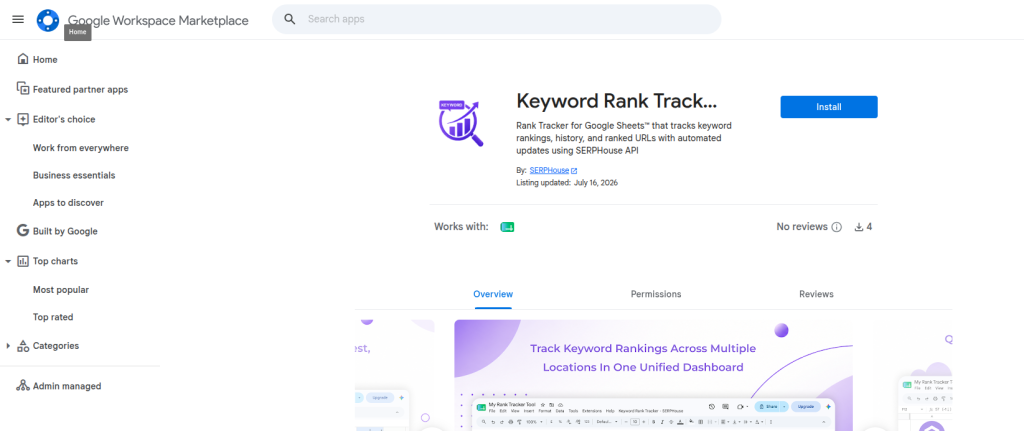
- Open the listing link above and click Install.
- Review the requested permissions and confirm. The add-on needs to view and manage spreadsheets it’s installed in, connect to the SERPHouse API, run in the background for scheduled fetches, and display prompts/sidebars inside Sheets.
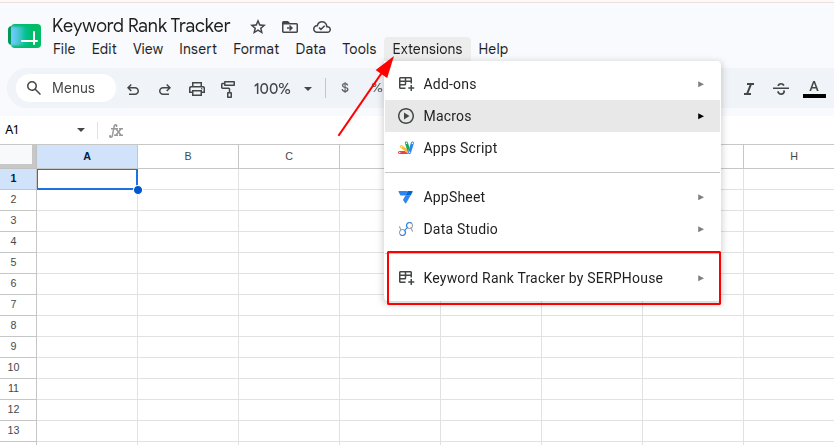
- Once installed, open (or create) a Google Sheet; the add-on is now available from Extensions → Keyword Rank Tracker by SERPHouse in any Sheet on that Google account.
The add-on is free to install, with paid usage tied to your SERPHouse API credits.
Who this is for: SEO professionals, agencies, freelancers, and marketing teams who are comfortable with Google Sheets but new to this add-on.
Prerequisites:
- A Google account with edit access to a Sheet
- A SERPHouse account and API key (free trial available)
- A target domain you want to track
1. Access the Add-on
Once installed on your Google account, the add-on is available from any Sheet:
Extensions → Keyword Rank Tracker by SERPHouse
This opens a submenu with every action you’ll use:
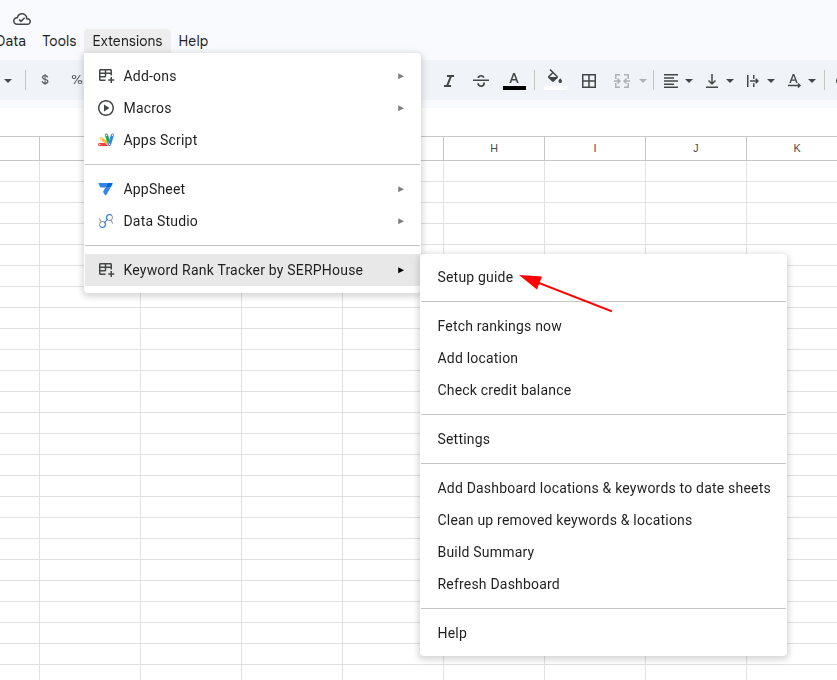
- Setup guide
- Fetch rankings now
- Add location
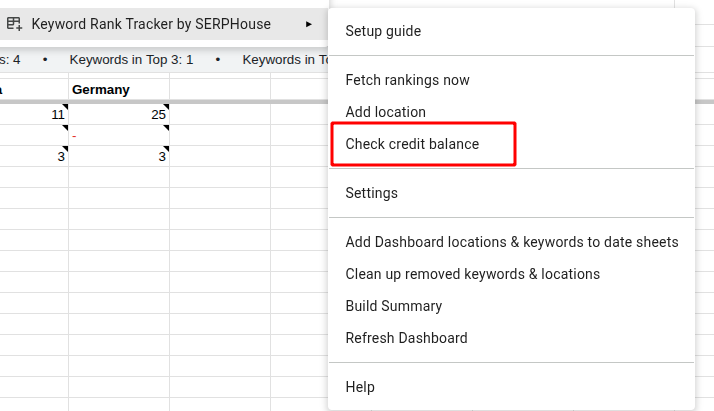
- Check credit balance
- Settings
- Dashboard maintenance tools (add locations/keywords to date sheets, clean up removed items, build summary, refresh dashboard)
- Help
Everything runs from this menu; there’s no separate app or dashboard outside the Sheet.
2. Authenticate: Connect Your API Key
Open the Setup guide from the Extensions menu. Step 1 asks for two things:
| Field | What to enter |
| SERPHouse API key | Your key from serphouse.com. Leave blank on repeat visits to keep the current key. |
| Target domain | The site you’re tracking, e.g. https://www.example.com/ |
Click Save & verify. The add-on checks the key against SERPHouse’s servers before letting you proceed.
Common mistake: Entering the domain without the https:// scheme. Use the full URL format shown in the field.
3. Configure Settings
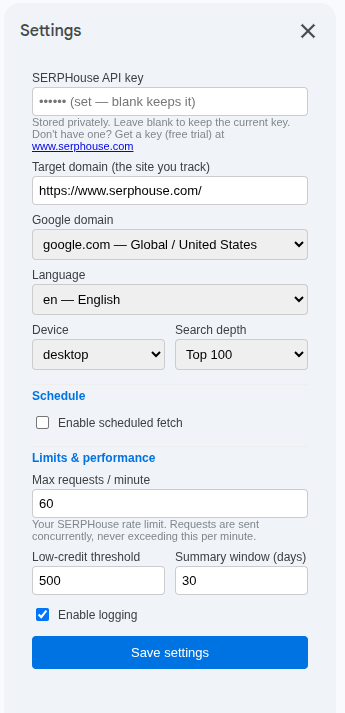
Open Keyword Rank Tracker by SERPHouse → Settings for full configuration:
| Setting | Purpose |
| Google domain | Regional Google index to query (e.g. google.com – United States) |
| Language | Search language parameter |
| Device | Desktop or mobile rankings |
| Search depth | How deep to check (e.g. Top 100) |
| Enable scheduled fetch | Turns on automatic recurring runs |
| Max requests/minute | Rate limit for concurrent requests |
| Low-credit threshold | Warning trigger before credits run out |
| Summary window (days) | Trend window used in the Summary tab |
| Enable logging | Toggles run logging |
Set Google domain, language, and device to match your actual audience before running any fetch; these directly change the ranking numbers you get back.
Click Save settings.
4. Build the Dashboard
Back in the Setup guide, Step 2 is a single action: Create dashboard.
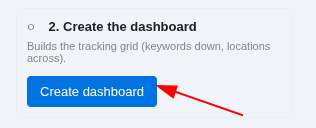
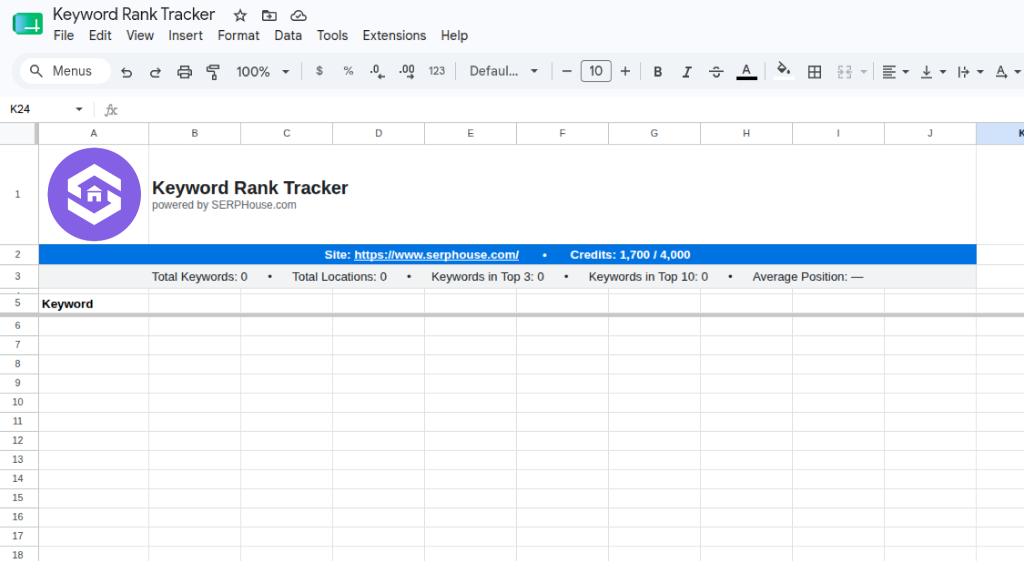
This builds the tracking grid: keywords down the rows, locations across the columns, along with a header row showing:
- Site URL
- Credit balance
- Total Keywords / Total Locations / Keywords in Top 3 / Keywords in Top 10 / Average Position
The grid is empty at this point. You need this structure in place before adding keywords or locations.
5. Add Keywords and Locations
Step 3 of the Setup guide: Add keywords & locations.
Keywords: Enter one per line in the text box, then click Add keywords.
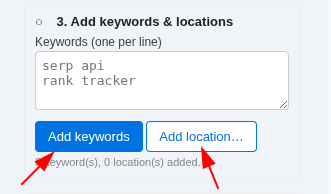
serp api
rank tracker
Locations: Click Add location… and search. Results include both countries and sub-regions:
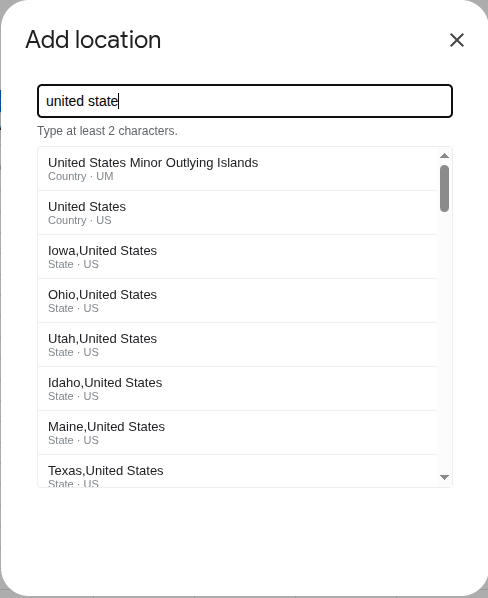
united state →
United States (Country)
Iowa, United States (State)
Ohio, United States (State)
Utah, United States (State)
…
Each keyword becomes a row; each location becomes a column. A status line confirms your totals after each addition.
Tip: Lock in your location list before adding a large batch of keywords; locations become columns, and reordering columns later means more rework than adding rows.
6. Run Your First Fetch
Step 4: Fetch your first rankings. You have two options:
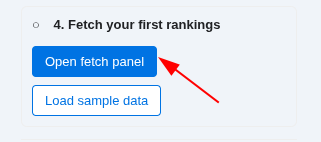
- Open fetch panel: runs a live fetch
- Load sample data: previews the dashboard populated with placeholder data, no credits used
Opening the fetch panel shows a pre-run summary:
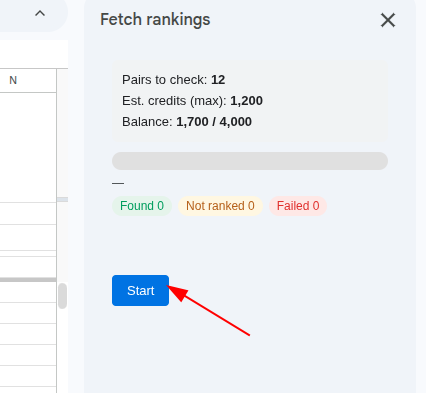
Click Start. The panel updates live with running counts: Found, Not ranked, Failed.
Pairs to check: 12
Est. credits (max): 1,200
Balance: 1,700 / 4,000

A new tab appears at the bottom of the sheet labelled with the fetch date (e.g. 2026-07-22), alongside the existing Dashboard, Logs, and Summary tabs.
Tip: Run your first fetch on a small set (a few keywords × a few locations) to confirm your Settings are correct before scaling up. The estimated credit cost is a ceiling, not a guarantee that actual usage can come in lower.
7. Read the Results
Dashboard
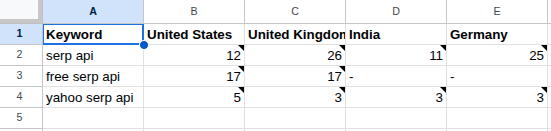
Each cell shows the ranking position for that keyword/location pair:
| Keyword | United States | United Kingdom | India | Germany |
| serp api | 12 | 26 | 11 | 25 |
| free serp api | 17 | 17 | – | – |
| yahoo serp api | 5 | 3 | 3 | 3 |
A dash (–) means the keyword wasn’t found within your configured search depth for that location, not that the request failed.
Logs
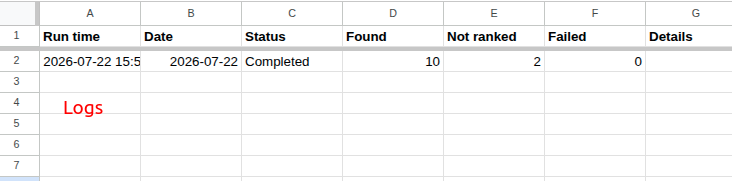
Each run logs:
Run time | Date | Status | Found | Not ranked | Failed | Details
Example: Completed | Found: 10 | Not ranked: 2 | Failed: 0
Failed > 0 is your signal to investigate that’s a genuine request failure (API/connectivity issue), distinct from a keyword simply not ranking.
Summary
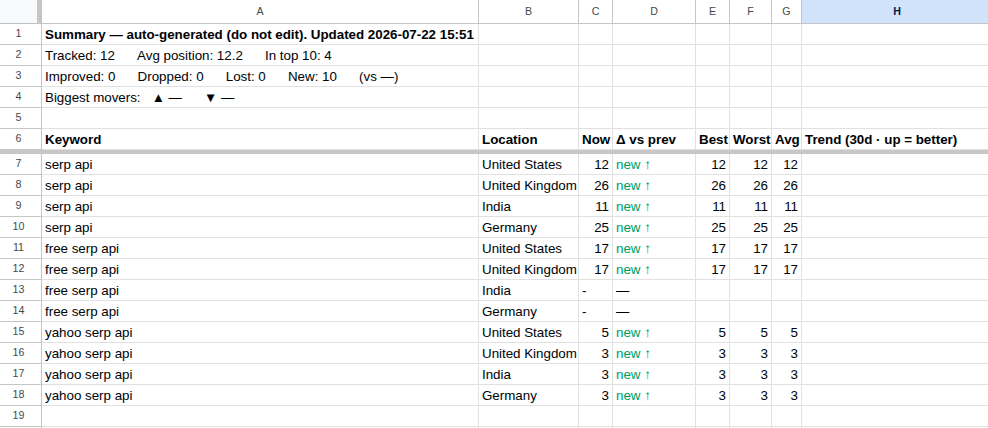
Auto-generated, not for manual editing. Shows:
- Tracked / Avg position / In top 10
- Improved / Dropped / Lost / New (vs. previous run)
- Per-keyword breakdown: current position, change vs. previous, best/worst/avg, and a 30-day trend
On your first fetch, every row shows new ↑ since there’s no prior run to compare against. Trend data becomes meaningful after a few fetch cycles.
8. Check Credit Balance
From Keyword Rank Tracker by SERPHouse → Check credit balance, a dialogue reports your current usage:
SERPHouse credits: 1,100 of 4,000 remaining.
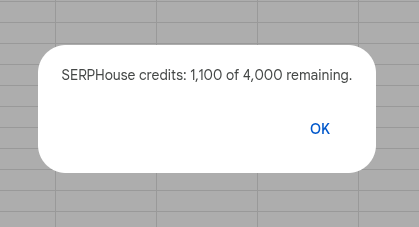
This is a read-only check; it doesn’t consume credits or trigger a fetch.
Tip: Check balance before enabling scheduled fetches. A recurring schedule that runs out of credits mid-cycle will fail silently until you notice missing data.
Common Errors and Troubleshooting
| Symptom | Likely Cause | Fix |
| Add-on missing from Extensions menu | Installed on a different Google account than the one signed into this Sheet | Check which account is active; reinstall if needed |
| “Save & verify” fails on the API key | Invalid or expired key, or a typo | Re-copy the key from your SERPHouse account and retry |
| Dash (–) instead of a ranking | Keyword not found within configured search depth | Not an error; increase Search depth in Settings if you expect it to rank deeper than Top 100 |
| Logs show Failed > 0 | API/connectivity issue during that run | Re-run the fetch; check credit balance and API key validity first |
| Fetch panel’s estimated credits look too high | Estimate is a ceiling based on pairs checked, not actual cost | Compare against your actual balance before and after a run; actual usage is often lower |
| Scheduled fetch stops updating | Ran out of credits mid-cycle | Check credit balance; raise the low-credit threshold in Settings so you’re warned earlier |
Best Practices
- Set region and device to match your audience. Google domain, language, and device settings in Settings directly change the ranking numbers returned; defaults rarely match a specific audience.
- Lock in locations before bulk-adding keywords. Locations become columns; adding many keywords first means more rework if you add another region later.
- Start small on your first fetch. A handful of keywords across a few locations confirms your Settings are correct before you commit a larger credit budget.
- Check Logs after every fetch, especially scheduled ones; it’s the only place that distinguishes a real failure from a keyword that simply isn’t ranking.
- Set a realistic low-credit threshold before enabling scheduled fetches, so a recurring run doesn’t silently stop.
- Give the Summary tab a few fetch cycles before judging trend data; the first run has nothing to compare against, so every row shows as “new.”
Conclusion
The Keyword Rank Tracker add-on turns rank tracking into something that lives inside the spreadsheet you’re already using for reporting, rather than a separate platform you have to reconcile against. The setup is linear: connect your API key, configure region/device/depth settings, build the dashboard, add keywords and locations, then run a fetch. Once you’ve got a couple of fetch cycles behind you, the Summary tab starts doing the more useful work, surfacing what’s moved, what’s new, and what’s dropped, without any manual copying.
FAQs
Does a dash (–) mean the fetch failed?
No. It means the keyword wasn’t found within your configured search depth for that location. Check the Logs tab to confirm the run itself completed.
Does checking my credit balance use credits?
No, it’s a read-only check.
Can I track sub-national locations, like a specific state or city?
Yes. The location search returns countries as well as states/regions; type more specific terms to narrow results.
What happens if I leave the API key field blank when revisiting Settings?
Your existing key is preserved. Blank doesn’t mean “clear”; it means “keep current.”
Why does every row in the Summary tab show “new” after my first fetch?
There’s no previous run to compare against yet. Comparison data (Improved/Dropped/Lost, trend lines) becomes meaningful from the second fetch onward.
google keyword rank tracker google keyword tracker Google rank tracker google rankings tracker google serp tracker google sheets keyword rank tracker google sheets seo Keyword position tracker keyword rank tracker keyword rank tracker google sheets keyword ranking tool rank tracking tool SEO rank tracker serp rank tracker